Hi, I’m woudon. Lately, I’ve been diving into Proxmox and I wanted to use it to improve my QoL at home.
Thus, I introduced a way to enable network printing from anywhere in your home by installing CUPS(printer server?) in this article.
I don’t reemember exactly because I built it a little while ago. So please read this article as a memo.
Don’t you print on papers in this age?
The importance is to be able to print when you want to.
Environment
- Proxmox VE 9.1.5
- Ubuntu 25.04(VM, using USB passthrough)
- PIXUS MP630
- CUPS 2.4.12
Install CUPS and driver
Install CUPS
To install CUPS, enter the following commands in your terminal.
sudo apt update
sudo apt install cups
sudo systemctl start cups
sudo systemctl enable cupsYou can check whether it’s running.
sudo systemctl status cupsConfigure CUPS
In current state, because CUPS accept from only localhost, you need to allow to access from external by following commands. (If you are using ufw, configure that as well.)
# Enable printing from any address
sudo cupsctl --remote-any
# Allowing external access to the admin web page
sudo cupsctl --remote-adminOther options here.(https://www.cups.org/doc/man-cupsctl.html)
Next, grant yourself admin privileges. By a following command, you can add the current user to lpadmin. This is the group of user who have admin privileges.
sudo usermod -aG lpadmin $USERNow, you can access the web UI by accessing port 631 of the IP address of your machine on which CUPS is installed (machine’s IP:631) with your browser.
Click [Administration] at the top of the page and you’ll be asked for a username and password; enter that of the user you set in the terminal.
Next, click [Add Printer] and a message will appear asking for the connected USB port; select it and follow the instructions to complete the setup.
I set the manufacturer to Generic ,the model to Generic IPP Everywhere Printer and tried to use appd file I found of the internet. But printer was not recognized properly.
Installation of printer driver is in next chapter.
What I have not tried: Use this. Hopefully it’s highly functional?
Install the printer driver
If it does not appear in the printer list, you will need to install the driver. In this time, I installed the following driver.
sudo apt install printer-driver-gutenprint ghostscript -yThen restart your machine.
If you can select Canon as the manufacturer and Canon MP630 series – CUPS+Gutenprint v5.3.4 as the model and add the printer, installation is succeeded.
Configure printing default settings, etc.
First, clicking on “Printer” tab on the UI and the name of printer you want to configure, you can move to the configure page.
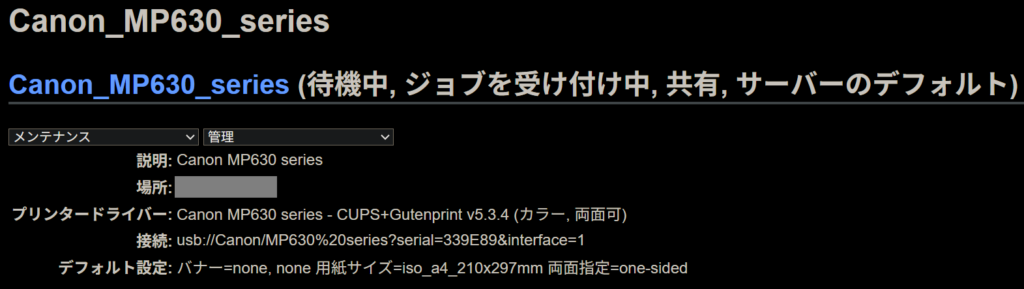
You can print a test page by selecting “Print Test Page” from the Maintenance pull down menu.
You can also set default paper size and other settings from “Set Default Options” in the Administration pull down menu.
Client configuration
Windows11
In Settings, go to “Bluetooth and devices”, “Printers and scanners” and click “Add a device” to add the printer. It took a long time to load.
The printer was displayed as follows.

Android
Open a website and click the Share button to print, or open an image file and click Print to open a preview.
Then, set up the printer at the top of the screen and print. You need to add the printer from [All Printers] for the first time.
Conclusion
Thank you for reading.
If you have a spare mini PC and an old printer lying around the house, it might be worth trying…
One minor issue is that when I connected the MP630 to my Windows 11 PC (I think I installed the official drivers), I was able to poster-print, but I can no longer do this from CUPS.
If you have any advice, please let me know.
See you!
Reference
・Install and configure a CUPS print server
・CUPS.org

コメント